Throttling & Critical Event Alerting
One of the key things to consider when working with AI Apps is throttling — and, more broadly, being notified when any service-impacting event occurs.
Throttling can happen because an AI backend ran out of capacity (which the gateway helps mitigate by automatically failing over to another instance) or because of a capacity-control measure enforced in the gateway (preventing a use case from exceeding its allocated capacity). But throttling is only one of several events worth watching in production: backend failures, authorization failures, content-safety blocks, and PII processing failures can all degrade availability or user experience.
The gateway ships a single, opt-in, low-noise alerting fragment — raise-alert-events — that emits Application Insights custom metrics for all of these categories so you can build targeted Azure Monitor alerts.
Looking for the full alerting strategy? This guide focuses on the mechanism and the throttling category. For the end-to-end strategy (what to alert on, at which scope, and how to keep alerts meaningful) see the Resiliency Guide — Alerting on Critical Events.
The alerting model: one metric, many alerts
Rather than a separate metric per event type, the gateway emits a single custom metric with an alertType dimension. This keeps the metric surface small while letting you slice and alert per category, product (access contract), model, backend, and app.
| Property | Value |
|---|---|
| Metric namespace | ai-gateway-alerts |
| Metric name | AI Gateway Alert |
| Value | 1 per event |
Dimensions emitted on every event (emit-metric supports at most 5 custom dimensions):
| Dimension | Description |
|---|---|
alertType |
Event category: throttling, backend-failure, auth-failure, content-safety, pii-failure |
statusCode |
HTTP status code associated with the event |
productName |
Use case / access contract (product) name |
deploymentName |
Target model / deployment (when known) |
backendId |
Selected backend / pool (selected-backend variable); NA before routing runs (e.g. an auth failure) |
Event categories & default behavior
The fragment is designed to be quiet by default and opt-in for the categories that matter. Platform-health categories that are inherently rare are enabled by default; client-driven categories that can be noisier are off until you opt in per use case.
alertType |
Trigger | Toggle | Default |
|---|---|---|---|
throttling |
HTTP 429 — per-minute token rate (TPM) exceeded, or backend rate limit |
alertOnThrottling |
On |
quota-exceeded |
HTTP 403 — long-term token-quota exhausted (AITokenQuotaExceeded) |
alertOnQuotaExceeded |
On |
backend-failure |
HTTP 5xx from a backend / backend connectivity error |
alertOnBackendFailure |
On |
auth-failure |
HTTP 401/403 — missing/invalid key, missing/invalid JWT, insufficient role, model-access denied |
alertOnAuthFailure |
Off |
content-safety |
llm-content-safety blocked the prompt/completion |
alertOnContentSafety |
Off |
pii-failure |
PII anonymization failed (fail-closed 502) |
alertOnPiiFailure |
Off |
A master switch, alertsEnabled (default true), can suppress all alerting for a scope when set to false.
How the fragment is wired
raise-alert-events is included by the three inference APIs (Azure OpenAI API, Universal LLM API, and Unified AI API) so throttling, quota-exceeded, and backend failures are captured centrally for every use case, without any per-product configuration:
<outbound>
    <base />
    <!-- ...existing outbound fragments... -->
    <!-- Emit alert metrics for error responses that reached the client (e.g. backend 429 / 5xx) -->
    <choose>
        <when condition="@((context.Response?.StatusCode ?? 0) >= 400)">
            <include-fragment fragment-id="raise-alert-events" />
        </when>
    </choose>
</outbound>
<on-error>
    <base />
    <!-- Throttling (429), backend failures (5xx), authorization failures,
         content-safety blocks, and PII failures -->
    <include-fragment fragment-id="raise-alert-events" />
    <include-fragment fragment-id="set-response-headers" />
</on-error>
The fragment auto-detects the event category from context.Response.StatusCode and context.LastError. Because some rejections short-circuit the pipeline via <return-response> (which bypasses outbound/on-error), the authorization chokepoints (security-handler, validate-model-access) emit an equivalent inline emit-metric at the point of rejection. (A policy fragment cannot include another fragment, so the emission is inlined rather than calling raise-alert-events.) It is gated by the same alertsEnabled / alertOnAuthFailure toggles:
<!-- Inlined right before an authorization <return-response> (gated by alertOnAuthFailure) -->
<choose>
    <when condition="@(context.Variables.GetValueOrDefault<string>("alertsEnabled","true").Equals("true", StringComparison.OrdinalIgnoreCase) && context.Variables.GetValueOrDefault<string>("alertOnAuthFailure","false").Equals("true", StringComparison.OrdinalIgnoreCase))">
        <emit-metric name="AI Gateway Alert" value="1" namespace="ai-gateway-alerts">
            <dimension name="alertType" value="auth-failure" />
            <dimension name="statusCode" value="401" />
            <dimension name="productName" value="@(context.Product?.Name?.ToString() ?? "Portal-Admin")" />
            <dimension name="deploymentName" value="@((string)context.Variables.GetValueOrDefault<string>("requestedModel","NA"))" />
            <dimension name="backendId" value="@((string)context.Variables.GetValueOrDefault<string>("selected-backend","NA"))" />
        </emit-metric>
    </when>
</choose>
This means throttling and backend failures are captured everywhere, while auth failures are captured at their source — all gated by the opt-in toggles below.
Enabling additional categories per use case
The API-level wiring keeps throttling, quota-exceeded, and backend-failure on for all traffic. To enable an additional category for a specific mission-critical use case, set the matching toggle in that access contract's product policy inbound section (before <base/>), so the toggle is in scope when the fragment runs later:
<inbound>
    <base />
    <!-- Opt this use case into authorization and content-safety alerting -->
    <set-variable name="alertOnAuthFailure" value="true" />
    <set-variable name="alertOnContentSafety" value="true" />
</inbound>
To silence a category for a noisy, non-critical use case (for example, a public sandbox that gets frequent 401s):
<inbound>
    <base />
    <set-variable name="alertOnThrottling" value="false" />
</inbound>
For the full access-contract configuration reference (including the
alertsEnabledmaster switch and combining with other policies), see AI Citadel Access Contracts Policy — Configuring Alerts.
View alert events in Application Insights
The gateway sends each AI Gateway Alert emission to Application Insights through two pipelines, and it's important to know which one you're looking at:
| Pipeline | Where it shows | Availability |
|---|---|---|
Log-based (customMetrics table) |
App Insights → Logs (KQL) | Immediate — written as soon as the gateway emits |
Pre-aggregated metric (ai-gateway-alerts namespace) |
App Insights → Metrics + the metric-alert signal picker | Delayed — the namespace only registers after the first emission (minutes), and until then it isn't listed in Metrics/Alerts |
So it is normal to see the metric in Logs while the ai-gateway-alerts namespace is not yet visible under Metrics or the alert signal picker. Confirm emission immediately with a log query:
customMetrics
| where name == "AI Gateway Alert"
| summarize count() by tostring(customDimensions.alertType)
Once the pre-aggregated namespace has registered you can also view it under Metrics (namespace ai-gateway-alerts, metric AI Gateway Alert) and split by alertType / productName.
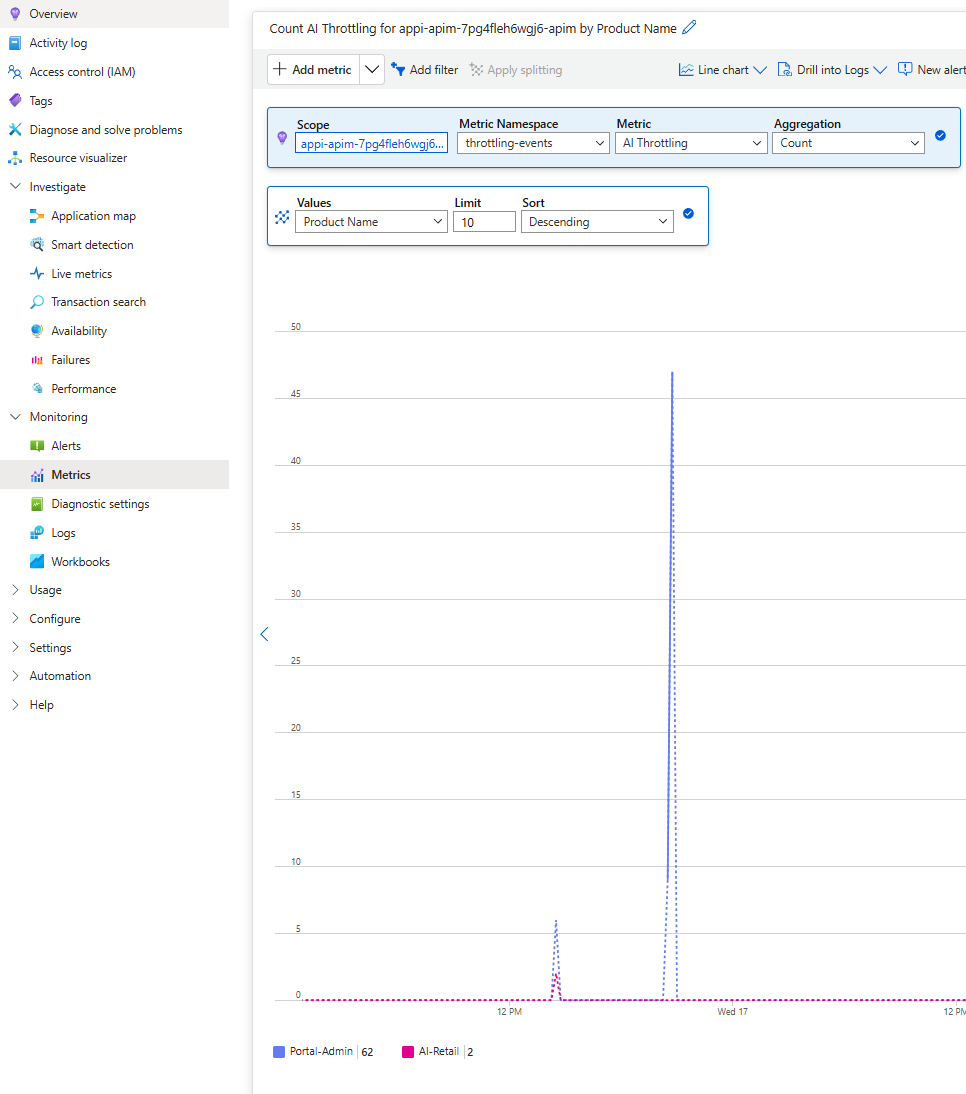
Creating alerts in Azure Monitor
Because the pre-aggregated metric namespace isn't available until the metric has first been emitted, there are two ways to alert — and the shipped Bicep defaults to the log-search variant so alerting works immediately:
- Log search (scheduled query) alert — default. Runs KQL over the
customMetricstable, so it works right away on any hub, even before traffic flows. - Metric alert — opt-in. Targets the
ai-gateway-alertsnamespace; lower latency/cost, but can only be created/evaluated once the namespace has registered.
To create a metric alert in the portal (once the namespace is visible):
- Go to the Application Insights component → Alerts → Create → Alert rule.
- Signal: select the custom metric
AI Gateway Alert(namespaceai-gateway-alerts). - Split by dimensions: add
alertType(and optionallyproductName,deploymentName,backendId) so a single rule can page per category / per use case. - Filter: e.g.
alertType = throttlingfor a throttling-only rule, oralertType = backend-failurefor a backend-health rule. - Set the threshold and evaluation window that reflect a meaningful signal (see the guidance below).
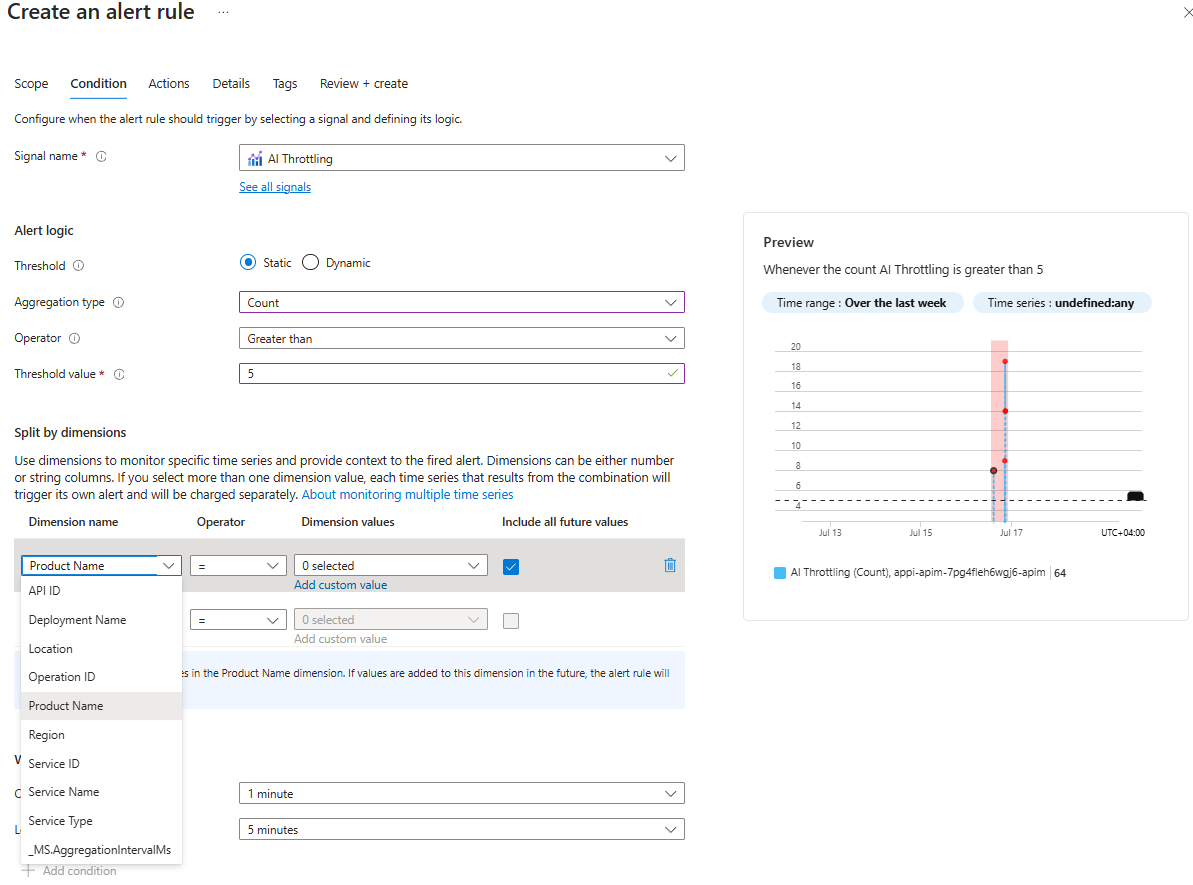
You can create a generic alert that fires when the total number of events exceeds a threshold, or a refined alert scoped to a specific alertType, product, or backend.
Deploy the alert rules with Bicep
Rather than clicking through the portal, deploy the action group and one alert rule per category with the shipped bicep/infra/app-insights-alert module. It provisions:
- an email Action Group (common alert schema — the email includes the rule description and the fired dimension values), and
- one alert rule per entry in the
alertsparameter, each filtered by thealertTypedimension (and optionallyproductName).
The module has an alertMode parameter:
alertMode: 'logQuery'(default) — createsMicrosoft.Insights/scheduledQueryRules(log search alerts) on thecustomMetricstable. Works immediately — no waiting for the metric namespace, so this is safe to deploy on a fresh hub.alertMode: 'metric'— createsMicrosoft.Insights/metricAlertson theai-gateway-alertsnamespace. Switch to this after the metric has been emitted and the namespace has registered (check withaz monitor metrics list-namespaces).
az deployment sub create \
  --name ai-gateway-alerts \
  --location <region> \
  --template-file bicep/infra/app-insights-alert/main.bicep \
  --parameters bicep/infra/app-insights-alert/main.bicepparam
The default parameters create throttling, quota-exceeded, and backend-failure rules; add auth-failure, content-safety, or pii-failure entries for use cases that opt into those categories.
Trigger and validate an alert end-to-end
The citadel-alerting-tests.ipynb validation notebook exercises the whole path: it provisions a restrictive access contract, auto-selects a gpt-family model, bursts load to force HTTP 429 throttling (Phase 1) and then exhausts the token-quota to force HTTP 403 quota-exceeded (Phase 2), deploys the alert rules above (scoped to the probe contract), and verifies the AI Gateway Alert metric and alert rules. Use it to confirm your alerting works before relying on it in production.
Migrating from the legacy throttling metric
Earlier versions emitted a throttling-only metric via the raise-throttling-events fragment:
| Legacy | Current | |
|---|---|---|
| Fragment | raise-throttling-events |
raise-alert-events |
| Namespace | throttling-events |
ai-gateway-alerts |
| Metric | AI Throttling |
AI Gateway Alert (filter alertType = throttling) |
The legacy raise-throttling-events fragment is still deployed for backward compatibility with any custom policies that reference it, but the shipped API policies now use raise-alert-events. If you have existing Azure Monitor alerts on throttling-events / AI Throttling, recreate them on ai-gateway-alerts / AI Gateway Alert with an alertType = throttling filter.
Conclusion
Critical events can be a sign of potential service degradation, and it is important to monitor and address them as soon as possible.
The gateway provides a single, opt-in mechanism to emit these events as custom metrics and take measures to address them. When designing your alerts, keep in mind:
- Alerts should be reserved for significant events that require attention — not noisy notifications that get ignored over time. This is why the fragment defaults to the platform-health categories (throttling, quota-exceeded, backend failures), and everything else is opt-in per use case.
- Have a runbook to address the root cause of an event (add pool capacity, tune the circuit breaker, define a model alias fallback, fix an access contract).
- Keep an eye on the alerts and tune thresholds as traffic patterns change.
- Watch dimension cardinality —
emit-metricallows at most 6 custom dimensions, anddeploymentNamecan be high-cardinality; excessive cardinality increases custom-metric cost. Scope opt-in categories to the use cases that truly need them.