Power BI Dashboard
Power BI is a business analytics service by Microsoft. It provides interactive visualizations and business intelligence capabilities with an interface simple enough for end users to build their own reports and dashboards.
In the Citadel Governance Hub (citadel-v1) implementation, Power BI is used to turn the LLM usage telemetry collected by the gateway into cost-attribution, chargeback, and FinOps reports. Usage records are streamed to Cosmos DB by the usage-ingestion pipeline and joined against a model-pricing reference table to calculate cost per product, model, backend, and application.
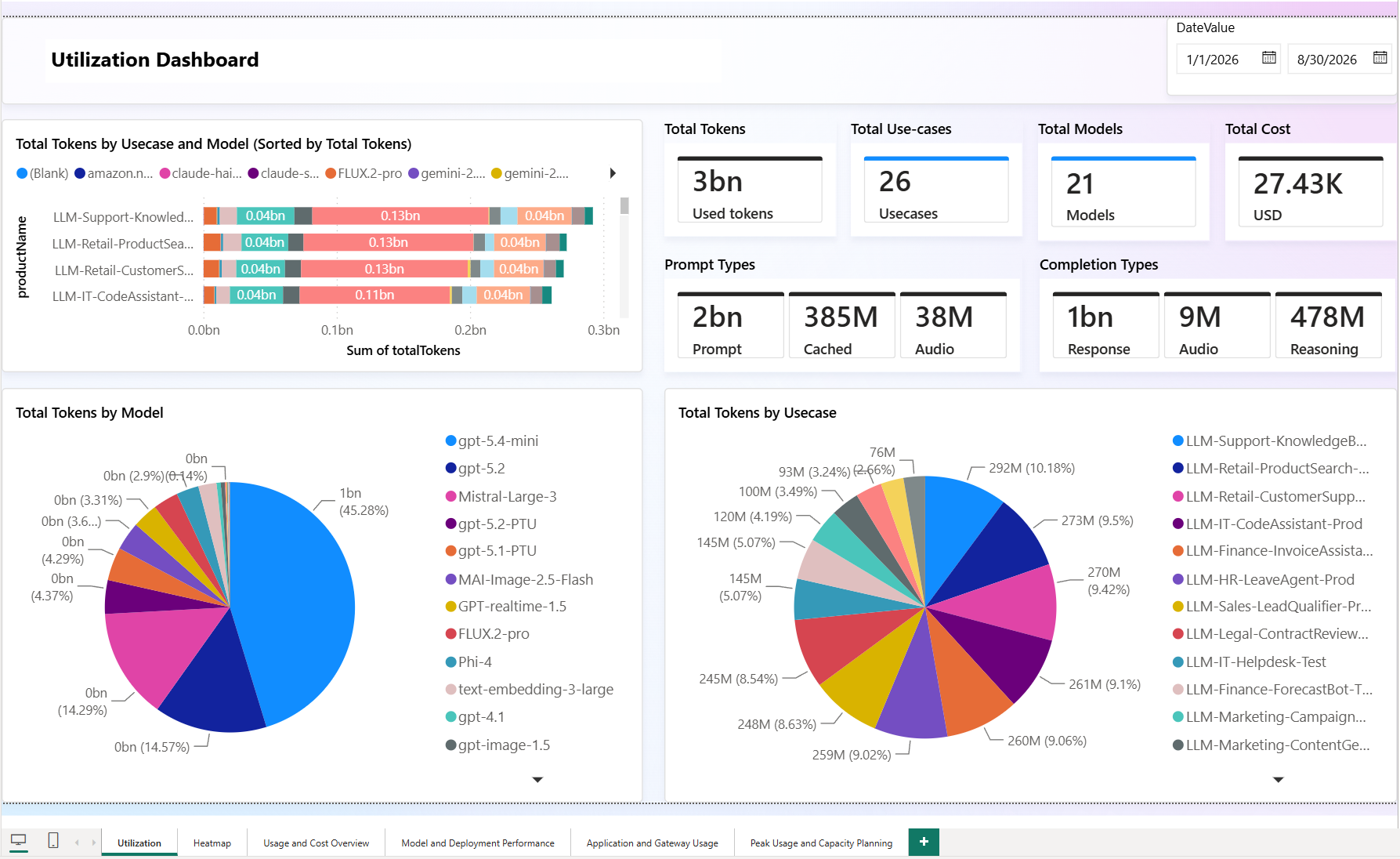
What changed in citadel-v1
If you are coming from a previous version of the accelerator, the following changed:
| Area | Previous | citadel-v1 |
|---|---|---|
| Power BI template | AI-Hub-Gateway-Usage-Report-v1-5-Incremetal.pbix |
Citadel-Governance-Hub-Usage-Dashboard-V1.1-Incremental.pbix |
| Usage data model | Basic token counts (promptTokens, responseTokens, totalTokens) plus sessionId / endUserId |
Detailed token breakdown (cached, audio, reasoning, prediction) plus two generic custom dimensions |
| Pricing model | CostPerInputUnit / CostPerOutputUnit only |
Extended per-token-type unit costs (cached, audio, reasoning, image) — see model-pricing-generated-extended.json |
| Metadata capture | Header-based sessionId / endUserId variables |
customDimension1 / customDimension2 configured per access contract or globally in the usage policy fragment |
| Fixed-cost services | Only token-based cost | PTU and other flat-rate services supported via the percentage calculation method |
Prerequisites
- Download and install the Power BI Desktop application from the Microsoft Store on Windows or from the App Store on Mac.
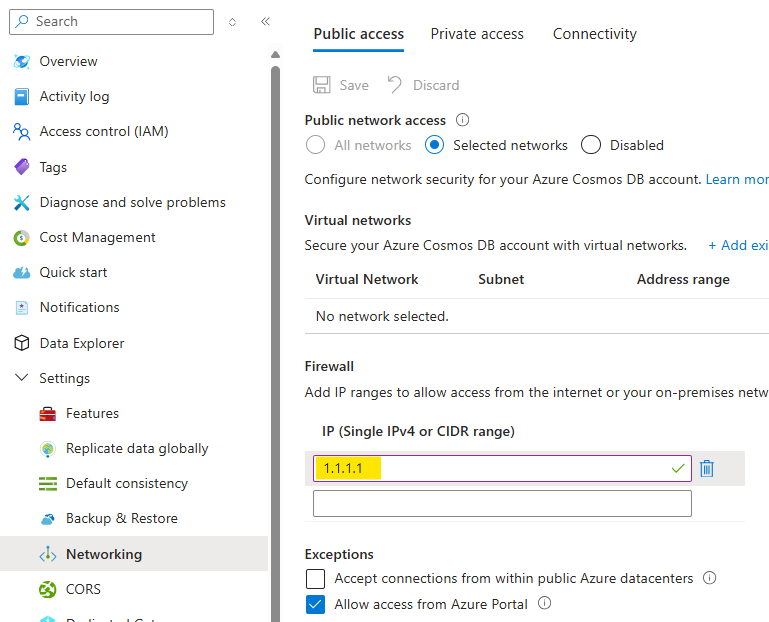
- Make sure you can access Cosmos DB from your local machine (you might need to allow your public IP to access Cosmos DB).
- Seed the model-pricing container with pricing entries. A ready-to-use sample aligned with the new data model is available at /src/usage-reports/model-pricing-generated-extended.json.
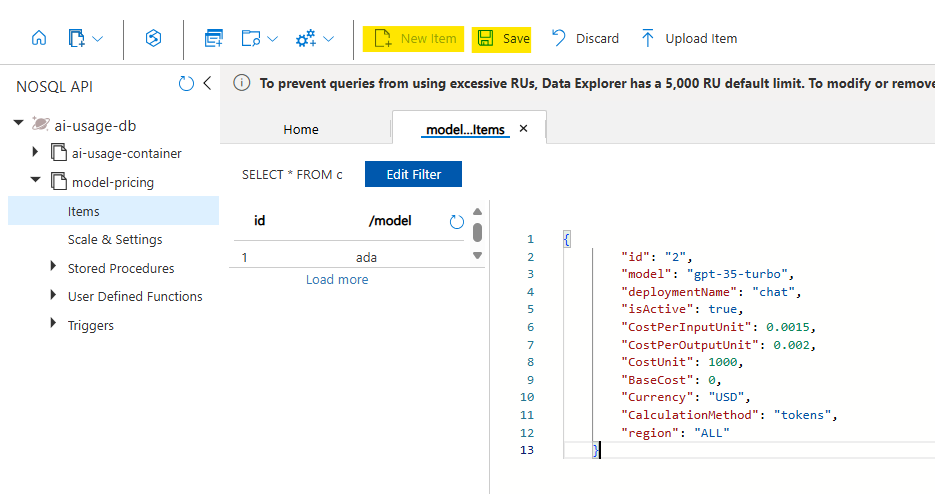
Note: Pricing in the sample file is based on public Azure/model-provider list prices and is provided as a starting point. Review the pricing published for the specific service/model you use and update the
model-pricingcontainer accordingly.
Understanding the data model
The dashboard is built on top of two Cosmos DB containers:
- llm-usage-container — one document per LLM request, emitted by the gateway usage pipeline.
- model-pricing — the reference table used to convert token counts into cost.
LLM usage data model
Each usage record now carries a detailed token breakdown and the two custom dimensions. A representative record looks like this:
{
    "id": "llm-126d96c6-575c-4d98-b6c6-006a2431db86",
    "timestamp": "7/19/2026 11:00:00 AM",
    "appId": "LLM-Testing-UniversalLLMAllModels-DEV-SUB-01",
    "productName": "LLM Testing UniversalLLMAllModels DEV",
    "deploymentName": "text-embedding-3-large",
    "backendId": "aif-dvfwtaj5al46e-1",
    "customDimension1": "",
    "customDimension2": "",
    "gatewayName": "apim-dvfwtaj5al46e",
    "gatewayRegion": "Sweden Central",
    "promptTokens": "10",
    "responseTokens": "0",
    "totalTokens": "10",
    "completionAcceptedPredictionTokens": "0",
    "completionAudioTokens": "0",
    "completionReasoningTokens": "0",
    "completionRejectedPredictionTokens": "0",
    "promptAudioTokens": "0",
    "promptCachedTokens": "0",
    "targetService": "NA",
    "model": "text-embedding-3-large",
    "aiGatewayId": "managed",
    "RequestIp": "NA",
    "operationName": "NA"
}
| Field | Description |
|---|---|
id |
Unique usage record identifier. |
timestamp |
Time the request was processed. |
appId |
Application / agent identifier (falls back to the APIM subscription ID). |
productName |
Access contract / use case (APIM product) that served the request. |
deploymentName |
Model deployment name derived from the requested model. |
backendId |
Backend instance that processed the request. |
customDimension1 |
Configurable — free-form dimension (e.g., end-user ID, sub-agent ID). See Activating custom dimensions. |
customDimension2 |
Configurable — second free-form dimension (e.g., session ID, cost center). |
gatewayName / gatewayRegion |
APIM gateway instance and Azure region. |
promptTokens |
Input (prompt) tokens. |
responseTokens |
Output (completion) tokens. |
totalTokens |
Total tokens for the request. |
promptCachedTokens |
Prompt tokens served from cache (billed at the cached rate). |
promptAudioTokens |
Audio input tokens. |
completionAudioTokens |
Audio output tokens. |
completionReasoningTokens |
Reasoning tokens (e.g., o-series / reasoning models). |
completionAcceptedPredictionTokens |
Predicted-output tokens that were accepted. |
completionRejectedPredictionTokens |
Predicted-output tokens that were rejected. |
targetService |
Target service/operation type (NA when not applicable). |
model |
Requested model name. |
aiGatewayId |
Gateway identity (managed for the managed gateway). |
RequestIp |
Client IP (when captured). |
operationName |
API operation name (when captured). |
Note: The detailed token breakdown (cached, audio, reasoning, prediction) enables accurate cost calculation when the corresponding unit costs are configured in the pricing model. Where a token type does not apply, the value is
0and contributes nothing to cost.
Preparing the pricing model
The pricing model has been extended to price each token type independently. This is required because modern models bill cached input, audio, reasoning, and image tokens at different rates.
Extended pricing fields
{
    "id": "1",
    "model": "gpt-4.1",
    "deploymentName": "gpt-4.1",
    "isActive": true,
    "CostPerInputUnit": 2.00,
    "CostPerOutputUnit": 8.00,
    "CostPerCachedInputUnit": 0.50,
    "CostPerAudioInputUnit": 0,
    "CostPerCachedAudioInputUnit": 0,
    "CostPerAudioOutputUnit": 0,
    "CostPerReasoningOutputUnit": 8.00,
    "CostPerImageInputUnit": 0,
    "CostPerCachedImageInputUnit": 0,
    "CostUnit": 1000000,
    "BaseCost": 0,
    "Currency": "USD",
    "CalculationMethod": "tokens",
    "region": "ALL"
}
| Field | Description |
|---|---|
model / deploymentName |
Keys used to join a usage record to its price. |
isActive |
Set to false to retire a pricing entry without deleting it. |
CostPerInputUnit |
Cost per input (prompt) token unit. |
CostPerOutputUnit |
Cost per output (completion) token unit. |
CostPerCachedInputUnit |
Cost per cached input token unit (usually a large discount). |
CostPerAudioInputUnit / CostPerAudioOutputUnit |
Cost per audio input / output token unit. |
CostPerCachedAudioInputUnit |
Cost per cached audio input token unit. |
CostPerReasoningOutputUnit |
Cost per reasoning output token unit. |
CostPerImageInputUnit / CostPerCachedImageInputUnit |
Cost per image input / cached image input token unit. |
CostUnit |
The unit size the prices are expressed in (e.g., 1000000 = per 1M tokens). |
BaseCost |
Fixed cost for the entry (used by the percentage method — see below). |
Currency |
Currency code (e.g., USD). |
CalculationMethod |
tokens (variable, usage-based) or percentage (fixed-cost distribution). |
region |
ALL or a specific region for region-specific pricing. |
Tip: Set the unit costs for token types your model does not use to
0. Combined with the0values in the usage record, they contribute nothing to the calculated cost.
Handling PTU and other fixed-cost services
Some AI services are billed at a flat, fixed rate regardless of per-request token consumption — for example Provisioned Throughput Units (PTU), reserved capacity, or a fixed-tier Azure AI Search service. For these, per-token pricing does not reflect reality: you pay the same monthly amount whether you send one request or one million.
To account for these in the dashboard, use the percentage calculation method. Instead of multiplying tokens by a unit price, the report distributes the fixed BaseCost proportionally across every consumer, based on each consumer's share of usage. This enables showback/chargeback of a fixed cost across the products and applications that actually used the capacity.
The last two entries in model-pricing-generated-extended.json illustrate a PTU deployment:
{
    "id": "19",
    "model": "gpt-5.1-PTU",
    "deploymentName": "gpt-5.1-PTU",
    "isActive": true,
    "CostPerInputUnit": 0,
    "CostPerOutputUnit": 1,
    "CostPerCachedInputUnit": 0,
    "CostPerAudioInputUnit": 0,
    "CostPerCachedAudioInputUnit": 0,
    "CostPerAudioOutputUnit": 0,
    "CostPerReasoningOutputUnit": 0,
    "CostPerImageInputUnit": 0,
    "CostPerCachedImageInputUnit": 0,
    "CostUnit": 1000000,
    "BaseCost": 11000,
    "Currency": "USD",
    "CalculationMethod": "percentage",
    "region": "ALL"
}
How the percentage method works for this entry:
CalculationMethod=percentagetells the report to distribute a fixed cost rather than price tokens individually.BaseCost=11000is the total fixed monthly cost of the PTU reservation (the amount to be spread across all consumers).CostPerOutputUnit=1(with all other unit costs0) turns output tokens into the weight used for distribution. Each record's weight = its output tokens × 1, so a consumer that generated 30% of the PTU deployment's total output tokens is allocated 30% of the$11,000.- Total tokens / output set to
1as the weighting means the split is driven purely by relative usage volume — no consumer is charged more than the fixedBaseCostin aggregate.
Note: You can weight the distribution on a different token type by placing the
1on the corresponding unit-cost field (e.g.,CostPerInputUnitto split by prompt volume). Keep exactly one unit cost set to1and the rest at0so the split reflects a single, well-defined usage measure.
The same technique applies to any fixed-cost service (reserved Azure AI Search, dedicated capacity, etc.): set CalculationMethod to percentage, put the flat monthly amount in BaseCost, and choose one usage measure as the distribution weight.
Preparing the Power BI Dashboard
Open src/usage-reports/Citadel-Governance-Hub-Usage-Dashboard-V1.1-Incremental.pbix in Power BI Desktop.
Because the report uses import mode, you should see sample data from a previously connected data source. To point it at your deployment, update the Cosmos DB connection.
-
Click Transform Data in the Home tab.

-
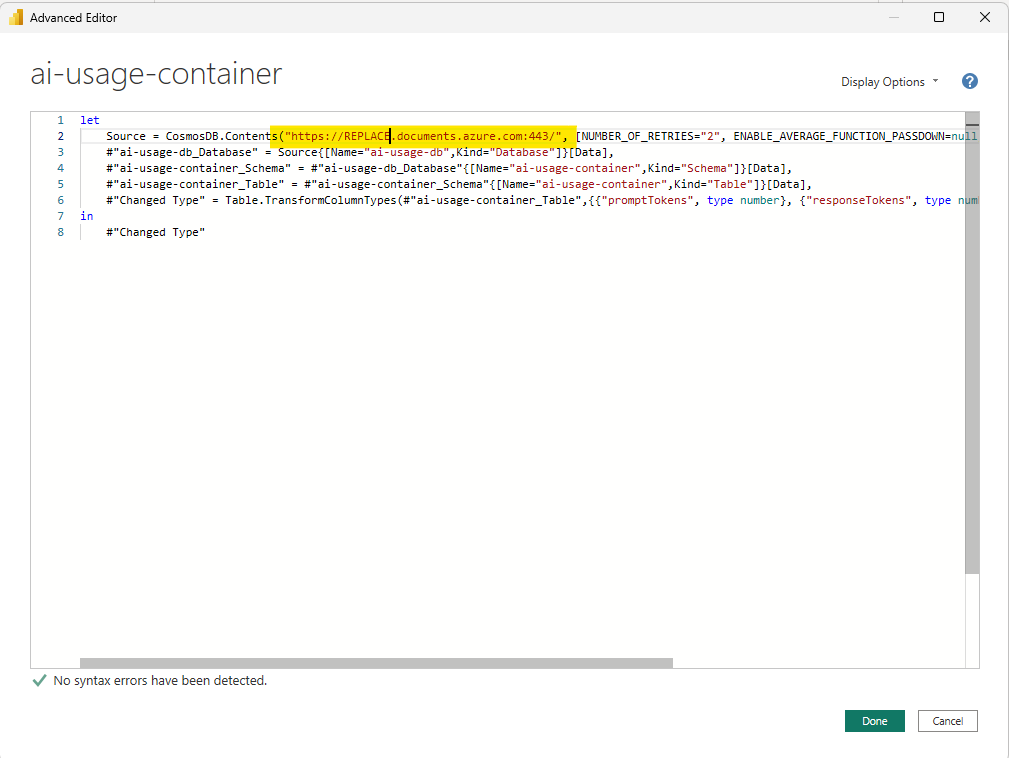
Right-click the llm-usage-container query and select Advanced Editor.
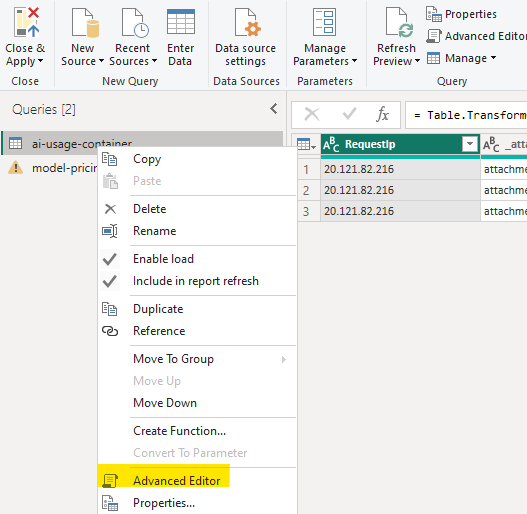
-
Replace the Cosmos DB endpoint with the one you deployed.
-
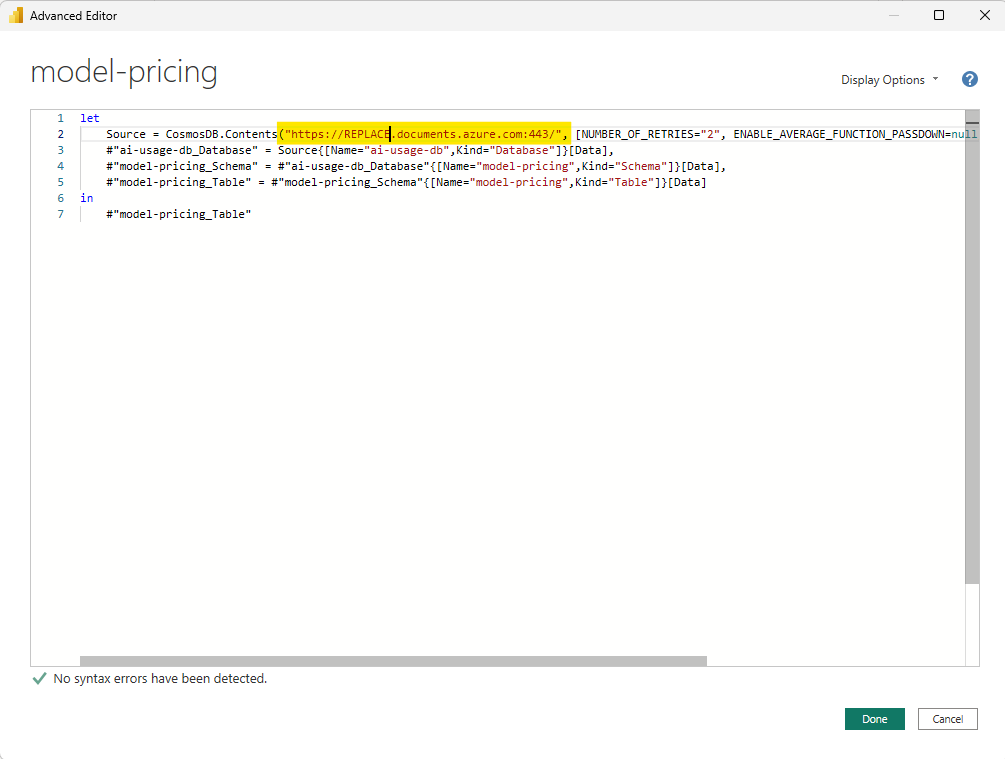
Repeat the same for the model-pricing query.
-
Click Refresh Preview to force Power BI to reload the data.
-
Click Close & Apply to save the changes.
-
You should now see data from your Cosmos DB in the report.
-
To pull a fresh copy of the data later, click Refresh in the Home tab.
Verifying the data relationship
The report joins llm-usage-container to model-pricing on the deploymentName column (many-to-one). If you added new pricing entries or renamed deployments, confirm the relationship is intact under Modeling → Manage relationships.
Activating custom dimensions
The usage data model exposes two generic custom dimensions — customDimension1 and customDimension2 — that let an organization track any additional context alongside usage (for example end-user ID, session ID, sub-agent ID, cost center, or department). By default both are empty (NA), and they only appear in the dashboard once you populate them.
The gateway emits these dimensions from the frag-set-llm-usage policy fragment, which reads the customDimension1 and customDimension2 context variables:
<!-- CUSTOM DIMENSIONS: Allows defining additional context for LLM usage -->
<dimension name="customDimension1" value="@((string)context.Variables.GetValueOrDefault<string>("customDimension1", "NA"))" />
<dimension name="customDimension2" value="@((string)context.Variables.GetValueOrDefault<string>("customDimension2", "NA"))" />
There are two ways to set these variables, depending on whether the mapping is per use case or global.
Option 1 — Per access contract (recommended)
Set the variables in the inbound section of the product (access contract) policy. This lets each use case decide what business context to capture, typically from request headers sent by the client application:
<inbound>
    <base />
    <!-- Map customDimension1 from a client header (e.g., end-user ID) -->
    <set-variable name="customDimension1" value="@(
        context.Request.Headers.GetValueOrDefault("x-enduser-id", "anonymous-enduser")
    )" />

    <!-- Map customDimension2 from a client header (e.g., session ID) -->
    <set-variable name="customDimension2" value="@(
        context.Request.Headers.GetValueOrDefault("x-session-id", "NA-session")
    )" />
</inbound>
See Citadel Access Contracts Policy — LLM Usage Custom Dimensions for the full per-use-case configuration reference.
Option 2 — Global default in the usage fragment
If a dimension has the same meaning across every use case, embed the default directly in the frag-set-llm-usage.xml policy fragment instead of repeating it in each access contract. Set the variable just before the <llm-emit-token-metric> block (or change the fallback used by the <dimension> element). This value applies to all products unless a specific access contract overrides it with its own set-variable.
Note:
llm-emit-token-metricsupports a limited number of custom dimensions. The two generic dimensions are provided precisely so you can carry organization-specific context without exceeding that limit. Keep dimension cardinality in mind — very high-cardinality values (like raw user IDs on high-traffic products) increase metric storage and query cost.
Once populated, customDimension1 and customDimension2 flow through to Cosmos DB and become available as slicers and grouping columns in the Power BI report, exactly like productName and deploymentName.
Publishing to the Power BI Service and scheduling refresh
Working with the .pbix in Power BI Desktop is ideal for development and one-off analysis, but it is not how the report should be consumed day to day. The recommended production approach is to publish the report to a Power BI workspace on PowerBI.com and let the service keep it up to date automatically by syncing from Cosmos DB on a schedule through a data gateway.
flowchart LR
    A[(Cosmos DB<br/>ai-usage + model-pricing)] --> GW[On-premises / VNet<br/>Data Gateway]
    GW -->|daily scheduled + incremental refresh| SVC[Power BI Service<br/>Workspace dataset]
    SVC --> R[Published report / dashboard]
    R --> U[Business users & AI owners<br/>access via workspace RBAC]
1. Publish the report to a Power BI workspace
From Power BI Desktop, sign in with your organizational account and use Home → Publish to upload the report to a dedicated workspace (for example, AI Citadel Governance – Usage). Use a workspace rather than My workspace so it can be governed and shared.
📖 Reference: Publish datasets and reports from Power BI Desktop
2. Install and configure a data gateway
The dataset imports data from Azure Cosmos DB, so the Power BI Service needs a data gateway to reach it during scheduled refresh:
- Use an on-premises data gateway (standard mode) installed on a VM that has network access to Cosmos DB, or
- Use a virtual network (VNet) data gateway when Cosmos DB is locked down to a private endpoint / VNet (no VM to manage).
After the gateway is installed, in the workspace dataset Settings → Gateway and cloud connections, map the Cosmos DB data source to the gateway and supply its connection credentials.
3. Enable incremental refresh and a daily schedule
The provided template (Citadel-Governance-Hub-Usage-Dashboard-V1.1-Incremental.pbix) is designed for incremental refresh — only new/changed usage partitions are refreshed instead of reloading the full history, which keeps refreshes fast and cost-efficient as usage grows.
- Confirm the incremental refresh policy on the llm-usage-container table (configured via the
RangeStart/RangeEndparameters in Power BI Desktop before publishing). - In the workspace, open the dataset Settings → Refresh and set a scheduled refresh (a daily cadence is recommended for cost-attribution/FinOps reporting).
📖 References: Incremental refresh overview · Configure scheduled refresh
4. Manage access with workspace RBAC
Control who can view or edit the report through Power BI workspace roles (Admin, Member, Contributor, Viewer). Grant Viewer to the business users and AI owners who consume the dashboard, and reserve Admin/Member for the platform/reporting team. Prefer assigning roles to Microsoft Entra ID security groups rather than individuals for easier governance, and combine with row-level security (RLS) if different teams should only see their own products/use cases.
📖 Reference: Roles in workspaces in Power BI
A starting point, not a finished product
Important: the dashboard shipped with this accelerator is a starting point — a reference model that demonstrates how gateway usage telemetry can be turned into cost-attribution and FinOps insights. It is not intended to be the final reporting solution.
Every organization has different reporting needs, KPIs, and audiences. Designing and maintaining the dashboards that represent your specific business requirements and serve your AI owners, FinOps, and platform stakeholders is the customer's responsibility. Treat the provided model and visuals as a foundation to extend, restyle, and adapt — add your own measures, slicers (including the custom dimensions above), and pages to match how your organization governs and charges back AI consumption.