A fresh look at the Azure App Service portal experience
Managing a web app often means moving between deployment slots, finding a setting, and checking logs while investigating an issue. A refreshed Azure App Service portal experience focuses on making those everyday tasks easier, with more direct navigation and tools that stay within reach as you work.
The refreshed experience is rolling out in phases, so you may not see it in the Azure portal yet.
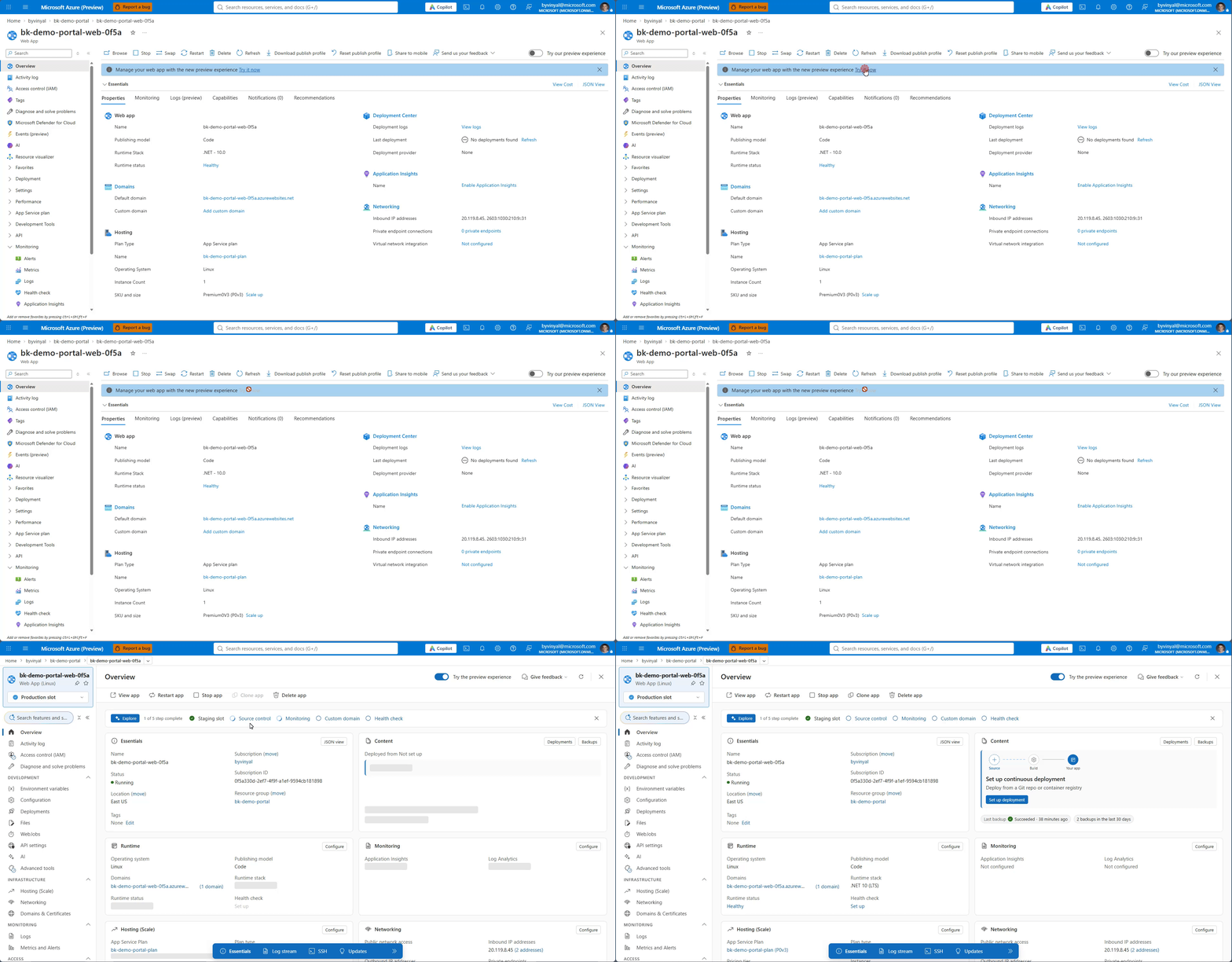
Example preview banner. Availability varies during the phased rollout.
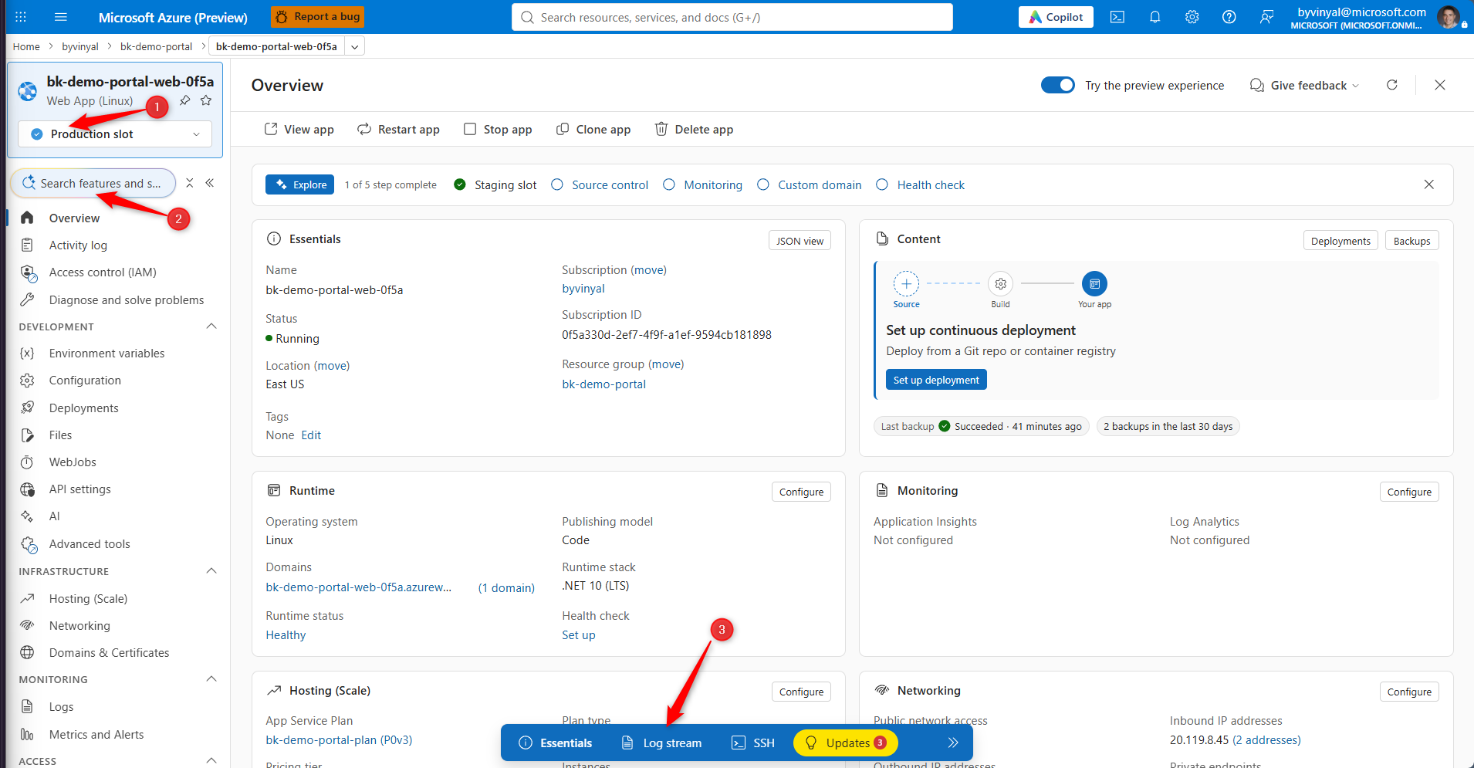
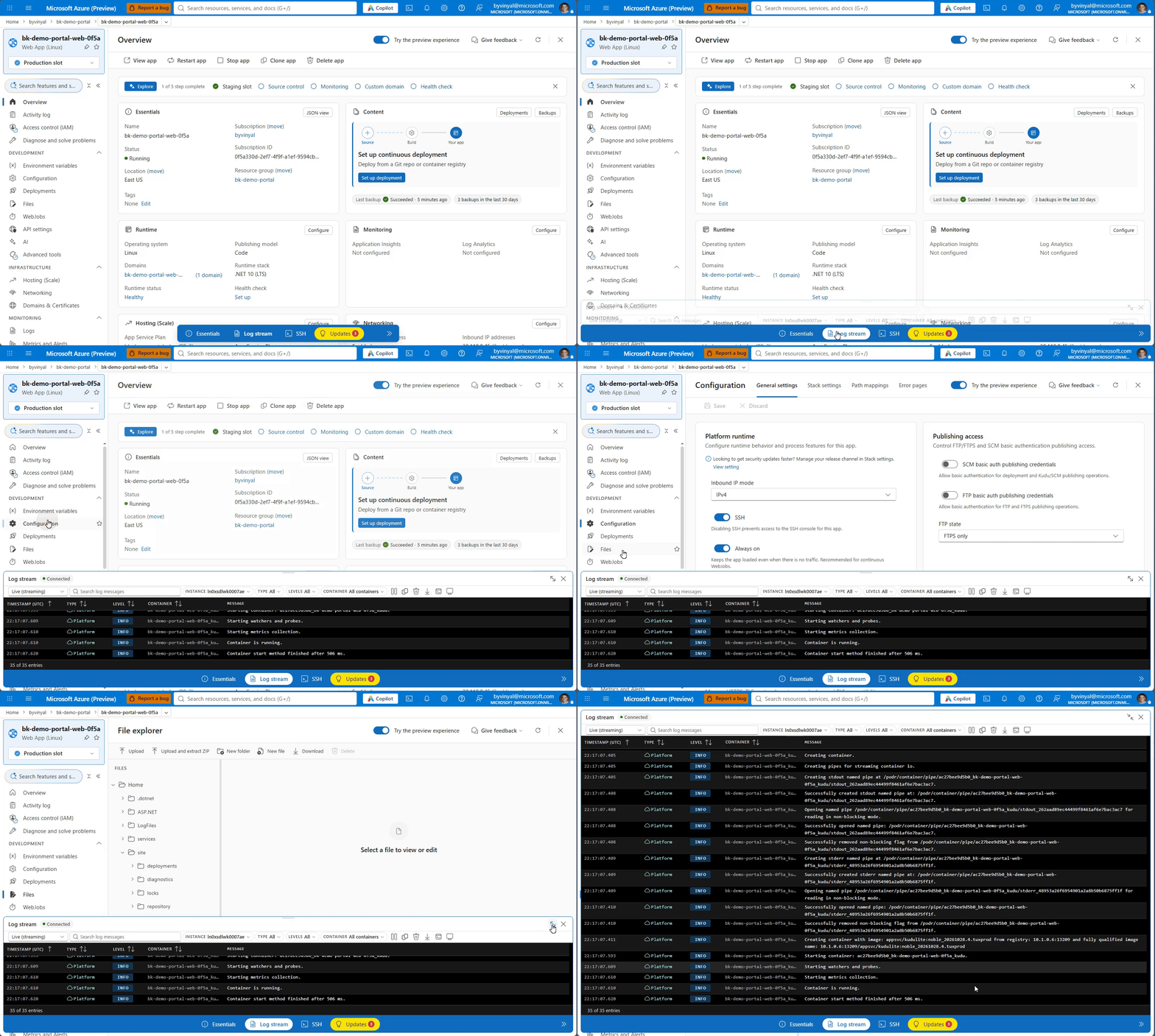
Here is a first look at four of the changes: a (1) new deployment slot selector, (2) search across settings and troubleshooting tools, (3) log streaming alongside your current task, and a simplified app creation experience.
Move between deployment slots more easily
Deployment slots let you work with separate instances of your app, such as a staging slot and production. Navigating between them should not interrupt what you are doing.
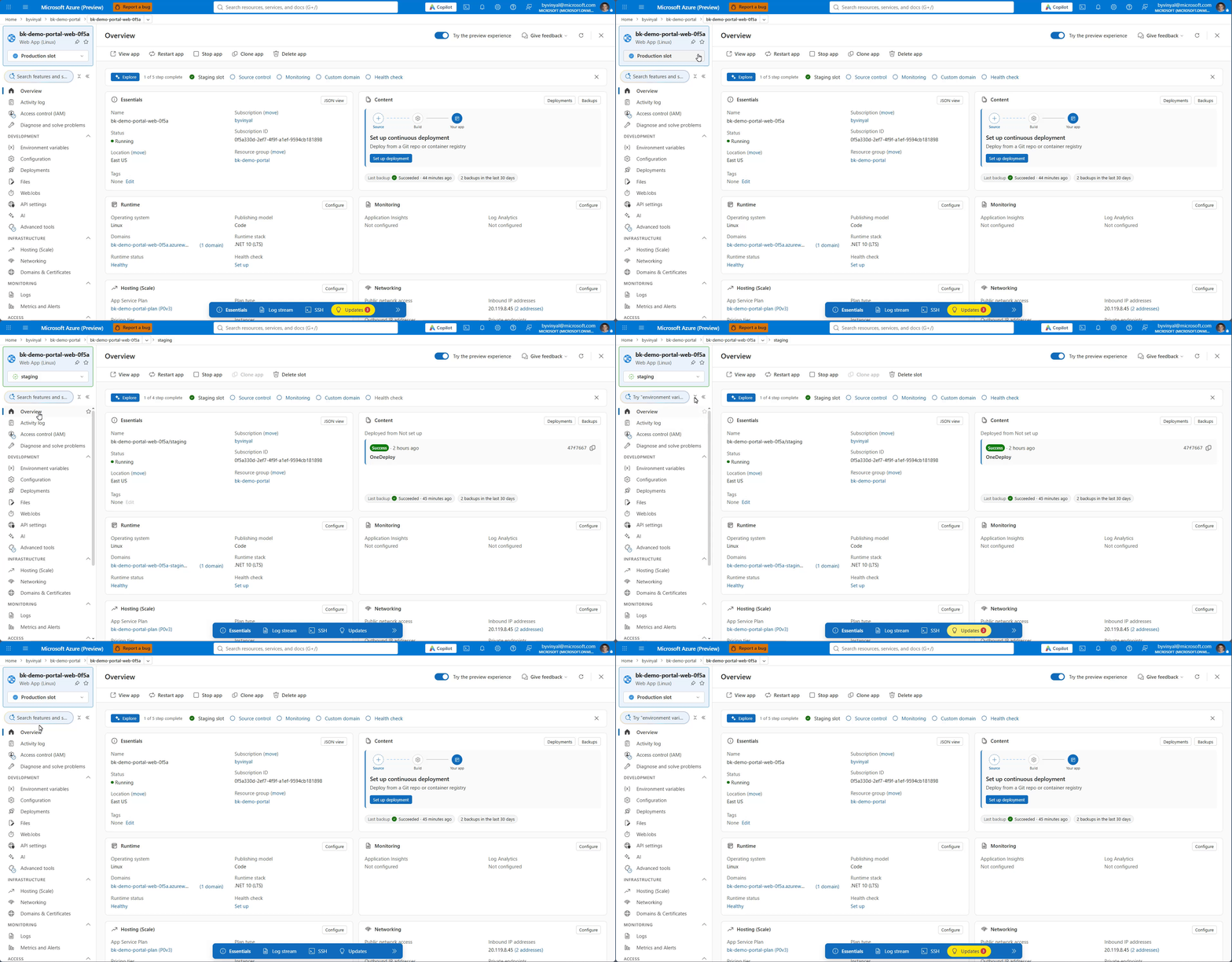
The refreshed experience introduces a slots dropdown. Select the slot you want to manage directly from the dropdown rather than navigating through nested portal blades.
This makes switching context more straightforward when you are reviewing a staging deployment or moving between slots during troubleshooting.
Find settings and troubleshooting tools with Global search
You should not need to remember where every feature lives in the navigation menu.
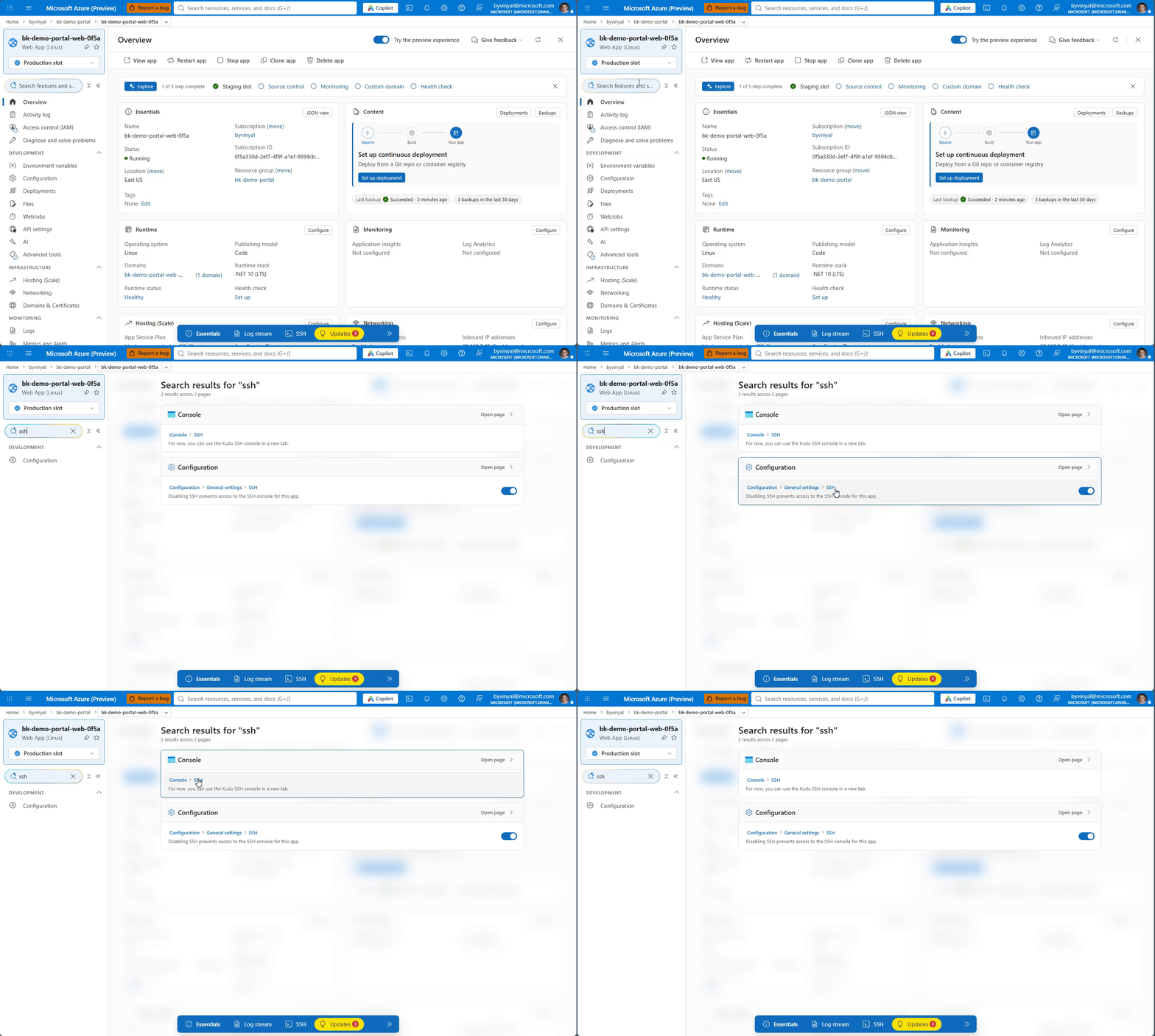
Global search, available in the left navigation, helps you find settings, features, and diagnostic detectors from one place. Whether you know exactly which setting you need or are looking for a troubleshooting tool, search provides another way to reach it without browsing through individual pages.
Keep logs in view without leaving your task
Logs provide useful context when you are investigating an application issue. Switching away from the page you are working on just to open them can break your flow.
The toolbelt also provides access to Log stream, so you can view logs without leaving your current task. Keep the relevant portal page open while checking log output, rather than moving back and forth between separate views.
Together, Global search and Log stream put frequently used tools closer to the work you are already doing.
A simpler starting point for new web apps
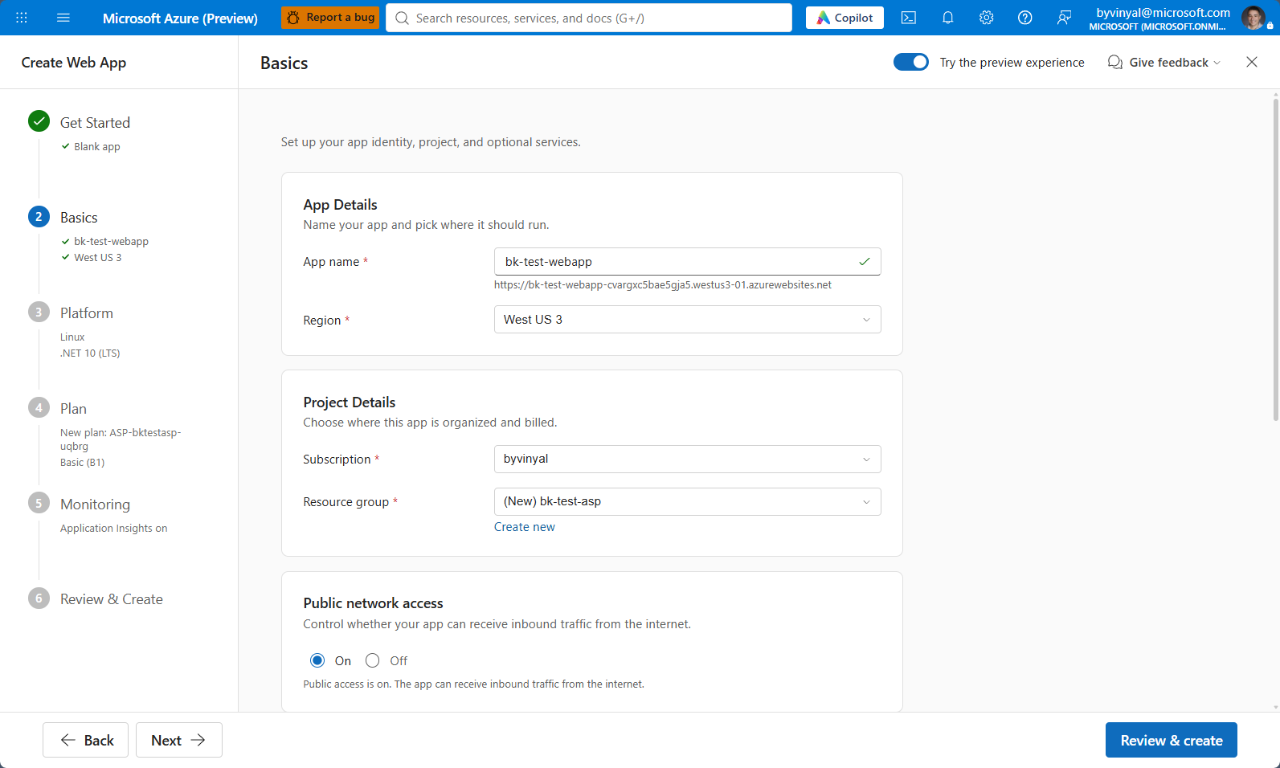
The refresh also includes a simplified app creation experience, with a fresh approach to getting started with App Service.
The goal is to make the first steps more approachable, alongside the improvements to managing and troubleshooting an existing app.
Help shape the experience
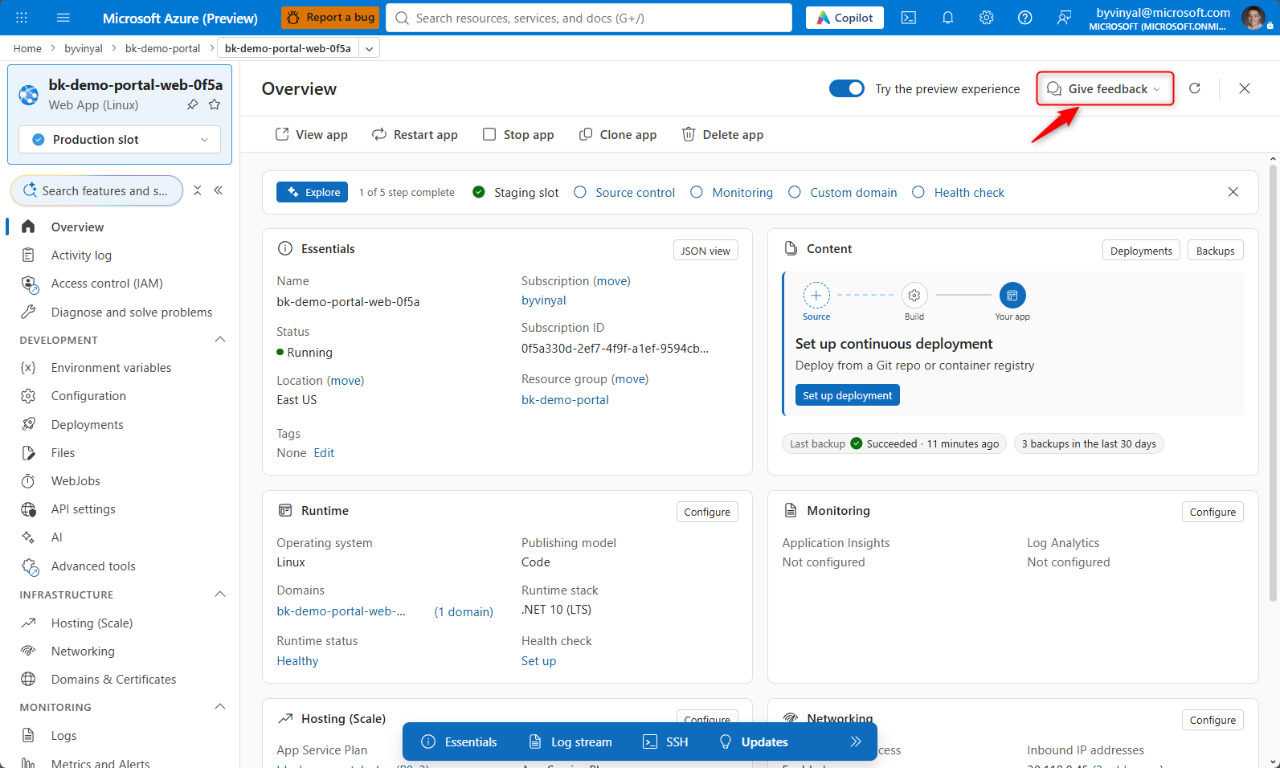
Feedback helps identify confusing workflows and areas that need more attention. Select Give feedback in the upper-right corner of the App Service page, next to Try the preview experience, to share feedback on the refreshed experience.
Useful feedback includes what you were trying to do, what you expected to happen, and what happened instead. Do not include credentials, secrets, or sensitive application data.
