⚠️ Disclaimer: This tool is provided as-is, without Microsoft support. Odin is an experimental project that accelerates skills and knowledge ramp up for Azure Local, and helps IT architects validate cluster design configurations.
ODIN Designer for Azure Local
Version 0.20.08 |
Odin, the Norse god embodying strategic thinking and architecture, is your guide for Azure Local deployments. This Optimal Deployment and Infrastructure Navigator provides a decision tree interface to select an Azure Local deployment type, and instance design using validated architecture and network configuration.
Cloud-connected deployment with full Azure Arc integration.
Disconnected
Air-gapped operation with local management.
Multi-Rack
Scalable, multi-rack distributed architecture, that can scale up to hundreds of machines.
Microsoft 365 Local
Microsoft 365 workloads with minimum 9 machines.
Contact Microsoft
For Multi-Rack Network Architecture requirements, please contact your Microsoft
representative to
understand the network requirements. Read the
documentation
Review Documentation
For information on Microsoft 365 Local on Azure Local review documentation. Read the
documentation
Select Architecture
Hyperconverged
S2D storage, 2-switch TOR pair, up to 16 machines per rack.
Disaggregated
External SAN storage, Clos leaf-spine fabric, up to 64 machines across multiple racks.
D1
Cluster Role
What role will this cluster serve in the disconnected environment?
Management Cluster
Hosts the disconnected operations appliance VM, DNS, PKI, Active Directory, ADFS, and local management services. Fixed at 3 machines.
Workload Cluster
Runs tenant workloads. Connects to an existing management cluster via the Autonomous Cloud FQDN endpoint.
D2
Autonomous Cloud Endpoint
Enter the Autonomous Cloud FQDN — this is the disconnected operations appliance endpoint that workload clusters will use as the Cloud endpoint connection.
This is the FQDN of the disconnected operations appliance endpoint that workload clusters will use as the Cloud endpoint connection.
✓ Valid FQDN
Enter a valid FQDN and confirm before proceeding.
✓ Autonomous Cloud FQDN confirmed
⚡ Why Azure Cloud & Region are still required
Although this management cluster uses the Autonomous Cloud for day-to-day operations, an Azure Cloud and Region must still be selected for:
Licensing & billing
Log collection from the disconnected operations appliance (limited connectivity only — not available in air-gapped deployments)
Select the Azure Cloud and Region below that will be used for these purposes.
DA1
Storage Type
Select the external SAN storage connectivity for your disaggregated cluster.
Fibre Channel SAN
Dedicated FC HBAs on separate fabric. FC traffic is isolated from Ethernet leaf switches.
Coming Soon
iSCSI SAN (4-NIC)
NIC3/NIC4 stay physical: Cluster A/B and iSCSI Path A/B share the same adapters, VLANs, subnets, and source IPs. No SET or host vNICs.
⚠️ Feature not available yet
Coming Soon
iSCSI SAN (6-NIC)
Dedicated iSCSI NICs on PCIe2, using leaf ports 33–48. 6 NICs total per machine.
⚠️ Feature not available yet
DA2
Backup Network
Enable optional in-guest VM backup network with dedicated NICs (2 additional ports per node).
No Backup Network
Standard deployment without dedicated backup NICs.
Enable Backup Network
Adds 2 dedicated backup NICs per machine for in-guest VM backup traffic.
DA3
Instance Scale
Configure the number of racks and machines per rack. Maximum 64 machines total, constrained by storage type and backup selection.
1
2
3
4
5
6
7
8
16
Scale: Maximum 64 machines per instance, evenly distributed across racks
DA4
Network Switches — VLANs, VNI & VRF
Configure VLAN IDs, VXLAN Network Identifiers, and VRF name for the Clos fabric overlay.
VLAN
A Virtual LAN segments a physical switch into isolated Layer 2 broadcast domains. Each traffic type (management, cluster, storage) gets its own VLAN ID (1–4094) so traffic is separated at the switch port level.
VNI
A VXLAN Network Identifier extends VLANs across the Clos fabric by encapsulating Layer 2 frames in UDP tunnels. Each VLAN maps to a unique VNI (up to 16 M), enabling the EVPN overlay to stretch subnets across racks.
VRF
A Virtual Routing and Forwarding instance creates an isolated routing table on each leaf switch. Choose below whether all VLANs (infra + workload) share a single VRF, or whether tenants get their own isolated VRFs separate from the infrastructure VRF.
Switch Port VLAN Modes
Cluster VLANs — Configure switch ports in access mode using the default VLAN ID. This means no VLAN tagging is needed at the host NIC level; the switch handles VLAN assignment for cluster traffic.
Management VLAN — Can be configured as the default VLAN ID (access/native) or as a trunk VLAN. Using trunk mode is common because additional tenant network VLANs share the same vSwitch and must be configured in trunk mode.
Tip — Access-mode VLANs are switch-only
The VLAN IDs below (Management, Cluster A/B, dedicated iSCSI A/B for 6-NIC, Backup) are configured on the physical leaf switch ports in Access Mode by default. In the 4-NIC iSCSI layout, iSCSI Path A/B derives from the Cluster A/B VLANs on NIC3/NIC4. The leaf adds/strips the 802.1Q tag — the host NICs receive untagged frames on these networks. That means on DA8 Network Adapter Ports → Overrides, the Cluster VLAN boxes are shown as 0 (untagged) and are read-only by design. Toggling the Cluster A/B drop-downs to Trunk flips both (they are paired) — the host NIC then tags and the VLAN value is emitted to the ARM sanNetworkList.clusterNetworkConfig.adapterIPConfig[*].vlanId parameter. Tenant LNET VLANs remain trunked to the host regardless.
VRF Design for Workload VLANs
Choose whether workload VLANs share the Infrastructure VRF, or live in their own isolated tenant VRFs.
Single VRF (Shared)
All infrastructure VLANs (Mgmt, Cluster, Storage, Backup) and any workload VLANs share the single Infrastructure VRF. Simpler design — inter-VLAN routing happens within one routing table.
Separate VRFs (Tenant Isolation)
Infrastructure VLANs stay in the Infra VRF; each tenant gets its own VRF with one or more trunk VLANs — similar to VNETs in Azure. Provides routing isolation between tenants.
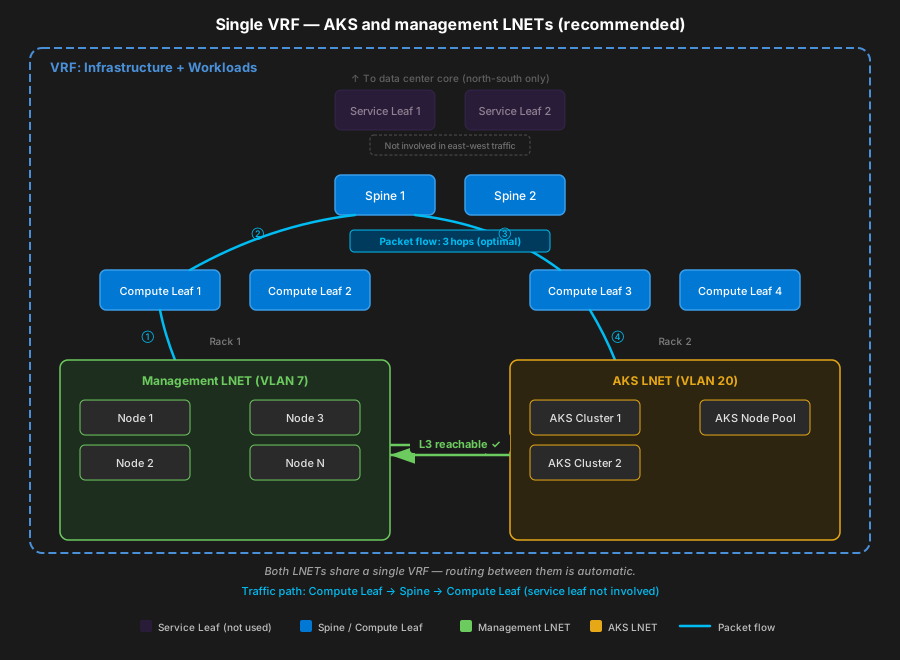
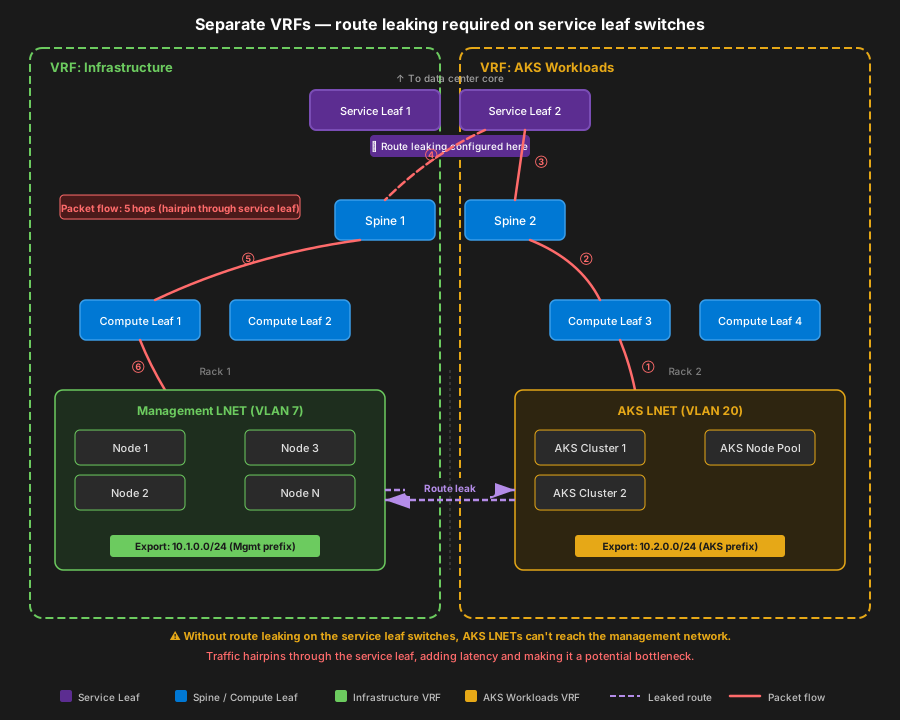
ⓘ AKS Logical Network reachability & routing hops
When AKS on Azure Local is deployed, the AKS LNET must have Layer 3 reachability to the Management LNET (it talks to the Kubernetes API server and other infra services). The chosen VRF design directly affects the path length and which switches are involved.
Separate VRFs require route leaking on the service-leaf pair — at minimum the AKS VRF must import management prefixes and vice versa. This makes the service-leaf tier a potential throughput bottleneck for AKS↔management traffic. Only leak the specific prefixes required; avoid default routes or broad summaries to preserve isolation.
Single VRF — 3 hops (cross-rack)
Separate VRFs — 5 hops (cross-rack, route leaking)
Tenant Networks (optional)
Add tenant VRFs with one or more trunk VLANs each — similar to VNETs in Azure. Each tenant VRF is an isolated routing domain that can contain multiple VLANs for VM workload traffic.
Click to confirm your VLAN, VNI, VRF, and tenant network configuration.
✓ VLAN configuration confirmed
DA5
QoS Policy
Quality of Service policy for traffic prioritization. Auto-configured based on storage type.
DA6
Leaf & Spine Network Switches — IP Routing Configuration
Configure loopback IPs, management subnets, iSCSI targets, and ASN assignments per rack.
Click to confirm loopback IPs and ASN assignments.
✓ IP routing configuration confirmed
DA7
Disaggregated Summary & Rack Layout
Review your disaggregated cluster configuration and rack layout diagram.
DA8
Network Adapter Ports
Hardware Requirement
Disaggregated clusters use a mix of SET-teamed and standalone NICs. Select the number of network ports per node, then configure each port below.
Network Ports Per Node
Select the total number of Ethernet network ports per node. FC HBA and BMC ports are separate and not counted here.
Port Configuration
Click to confirm your port configuration before proceeding.
✓ Port configuration confirmed
Network Traffic Intents
Drag and drop network adapters to assign them to traffic intents. In disaggregated mode, Management + Compute uses SET teaming. 4-NIC iSCSI keeps NIC3/NIC4 standalone as shared Cluster+iSCSI paths, while 6-NIC + Backup uses ClusterBackupSwitch on NIC3/NIC4 and leaves iSCSI on dedicated NIC5/NIC6.
Adapter Mapping Configuration
Drag and drop network adapters to assign them to traffic intents.
Available Network AdaptersDrag adapters to intents below
Tip Click an adapter, then click a drop zone to move it.
Azure Local is not supported in Azure China region.
03
Azure region for Azure Local resources
Australia East
Azure public
Canada Central
Azure public
East US
Azure public
India Central
Azure public
Japan East
Azure public
South Central US
Azure public
Southeast Asia
Azure public
West Europe
Azure public
US Gov Virginia
Azure Government
ℹ️ Azure Region for Disconnected
Required for billing and log collection. Log collection from the disconnected operations appliance is only available with limited connectivity — not in air-gapped deployments.
Note
You need to assign your servers equally across 2 Local availability zones. Nodes not placed in Zone 1 will automatically be assigned to Zone 2.
Local availability zone 2
Servers on local availability zone 2
Tip
If drag-and-drop is restricted in your browser, click a node to select it, then click a node in the other zone to swap them.
TOR switch architecture
Select your top-of-rack (TOR) switch layout for a Rack Aware (multi-room) cluster.
How many TOR switches per room? *
1 TOR per room
2 TORs per room
Select the architecture option *
Dedicated storage links
4 TORs total. VLAN 711 and VLAN 712 use separate, dedicated room-to-room link sets (storage bypasses MLAG to reduce RDMA hops).
Aggregated storage links
4 TORs total. Storage uses port-channels/vPC across rooms; traffic path depends on hashing and can traverse MLAG (potential latency increase).
Select the architecture option *
Per-room node connectivity
2 TORs total. SMB1 and SMB2 are hosted on the same TOR in each zone; simpler wiring but no TOR redundancy within a zone (single point of failure per zone).
Cross-room node connectivity
2 TORs total. Each machine connects to TORs in both rooms; reduces dependence on TOR-to-TOR RDMA room links but requires cross-room fiber per machine interface.
The witness type is automatically determined based on your cluster configuration.
Cloud
Azure cloud witness for high availability
No Witness
No witness configuration
06
Storage Connectivity
Storage Switched
Physical ToR switch. Required for 5+ machines.
Storage Switchless
Direct connection. Only for 1-4 machines.
ToR Switch Configuration
Select the number of Top-of-Rack switches for storage connectivity.
Single ToR Switch
One ToR switch (no redundancy at switch level).
Recommended
Dual ToR Switches
Two ToR switches (recommended for redundancy).
ℹ️ Single ToR Switch Unavailable
Single ToR Switch is not supported for Hyperconverged clusters with 4 or more nodes. Dual ToR switches are required to provide the necessary redundancy and bandwidth for larger cluster deployments.
Switchless Link Configuration
Select the storage fabric wiring pattern for this specific topology.
Single-Link configuration
One storage link per machine-pair (no redundancy).
Dual-Link configuration
Two storage links per machine-pair (redundant).
07
Network Adapter Ports
1 Port
Single Machine Only.
2 Ports
Minimum. Converged only.
4 Ports
Standard redundancy.
6 Ports
High flexibility.
8 Ports
Maximum resiliency and performance.
Hardware Requirement
For multi-node clusters, at least two network ports must be RDMA-capable (iWARP/RoCEv2) to support high-performance Storage traffic.
For a 3-node Switchless deployment, you need at least 6 physical ports per node: two teamed ports for management/compute plus four standalone RDMA ports for storage.
Port Configuration
Click to confirm your port configuration before proceeding.
Proxy server cannot use .local FQDN and the IP address cannot be on AKS reserved subnets
10.96.0.0/12 or 10.244.0.0/16.
Read
documentation
Azure Local doesn't support HTTPS inspection. Make sure that HTTPS inspection is disabled along your networking path for Azure Local required endpoints to prevent any connectivity errors. This includes use of Entra ID tenant restrictions v1 which isn't supported for Azure Local management network communication.
Review the required firewall endpoints
Choose which Azure services should use Private Link endpoints. These FQDNs will be added to your proxy bypass list.
🔗 Arc Private Link Endpoint
his.arc.azure.com
🚫 Not supported for Azure Local
🔐 Azure Key Vault
vault.azure.net
⚠️ Keep public access during deployment
💾 Azure Storage (Blob)
blob.core.windows.net
⚠️ Required for 2-node cloud witness
📦 Azure Container Registry
azurecr.io
⚠️ No wildcards - use specific ACR FQDNs
🔄 Azure Site Recovery
siterecovery.windowsazure.com
Not allowed via Arc Gateway
🗄️ Recovery Services Vault
backup.windowsazure.com
Azure Backup private endpoints
🗃️ SQL Managed Instance
database.windows.net
Private connectivity for SQL MI
🛡️ Microsoft Defender for Cloud
Security monitoring endpoints
For advanced security scenarios
Selected Services:0 service(s) selected
ℹ️ Private Endpoints Configuration
Private Endpoints (Private Link) work identically in both Public Path and Private Path architectures:
Add Private Link endpoint FQDNs to the proxy bypass list
Configure DNS to resolve Private Link FQDNs to private IPs
Traffic flows directly to Private Endpoints without going through proxy or Arc Gateway
13
Management Connectivity
Nodes and Cluster IP Assignment
Static IP
DHCP
⚠ Important
DHCP reservations must be configured to ensure the cluster nodes always get the same IP
address. It is not supported to change IP address of the nodes.
Node Names and IPs
Provide one node name and one node IP (CIDR format) per node. Names must be NetBIOS-compatible (max 15 characters). Node IPs must be unique.
✓ Node settings valid
14
Infrastructure VLAN
ⓘ Pre-configured from Step DA4
The Management VLAN mode selected in the Disaggregated VLAN configuration determines this setting.
Default VLAN
Untagged — management traffic uses the native VLAN (ID 0 on the host).
Custom VLAN
Tag management traffic with a specific VLAN ID on the host NICs.
How to configure management VLAN
We recommend that the management subnet of your Azure Local instance use the default VLAN, which in most cases is declared as VLAN ID 0 (untagged). This means the host sends management traffic without a VLAN tag — the TOR switch receives it on the native/access VLAN.
Note: Even when the host uses untagged traffic (ID 0), your TOR switch still assigns this traffic to a VLAN internally (e.g. VLAN 7). The switch-side VLAN ID is configured separately in the Switch Config Generator.
If your network requirements are to use a specific management VLAN, it must be configured on your physical network adapters before they're registered to Azure Arc. If you plan to use two physical adapters for management, you need to set the VLAN on both adapters.
Read the VLAN guidance
Enter the VLAN ID configured on all management adapters before Azure Arc registration.
15
Infrastructure Network
⚠ Important
Cluster nodes must have IPs on this infrastructure network CIDR and cannot be within the
reserved infrastructure IP range that you will define below. The Azure Local Infrastructure network cannot overlap with any of the AKS reserved networks required by Arc Resource Bridge (10.96.0.0/12 and 10.244.0.0/16).
Infrastructure Network IP Pool
Define the IP
range for infrastructure components (min 6 consecutive IPs). Cluster IP, ARB VM, SDN Network Controller and other infrastructure services will use IPs out of this IP Pool range.
Must be in the Infrastructure Network CIDR and outside the reserved Infrastructure IP Pool.
✓ Valid Range
✓ Valid Default Gateway
Disconnected Operations Appliance VM — Dedicated IPs
The disconnected operations appliance requires two dedicated IPs for the ingress vNIC (portal / CLI access) and the management vNIC.
✅
Yes — Same VLAN
Use the infrastructure VLAN and subnet.
🔀
No — Different VLAN
Provide appliance VLAN ID and dedicated subnet IPs.
✓ Valid appliance VLAN ID
✓ Valid Appliance IPs — no conflicts with node IPs or gateway
16
Storage Pool Configuration
Disaggregated (SAN) auto-selection:
The create-cluster-san ARM template only supports InfraOnly. Express and KeepStorage are not valid for SAN-backed deployments and have been disabled.
Express
Create one UserStorage volume per physical machine
InfraOnly
Create only the Infrastructure volume, no storage volumes for workload
KeepStorage
Retain the existing volumes present on the data disks of the physical machines
SAN Volume LUN IDs *
Enter the LUN identifiers your SAN array has pre-provisioned for the Infrastructure_1 volume and the Cluster Performance History volume. Both values are required — they map directly to infraVolLunId and infraPerfLunId in the create-cluster-san ARM parameters file.
ⓘ
Infrastructure_1 Volume SAN LUN ID is required.
Cluster Performance History Volume SAN LUN ID is required.
17
Active Directory
Active Directory Domain Services (AD) for Identity
Required for disconnected deployments with Active Directory Federation Services
DNS Configuration
DNS Service
Do you have an existing DNS Service?
If No is selected, a Local DNS Server will be installed on the nodes and configured to use the DNS server as a forwarder to resolve external names.
If Yes is selected, an external DNS server is already configured and there is no need to deploy a Local DNS server on Azure Local nodes.
⚠ Important
DNS servers cannot be changed after deployment. Ensure the configuration is correct
before proceeding.
Secure by default configuration of security controls
Customized
Customize security controls. Note: it is not recommended to disable security controls.
Custom Security Settings
Drift Control Enforced
Bitlocker Boot Volume
Bitlocker Data Volumes
Wdac Enforced
Credential Guard Enforced
Smb Signing Enforced
Smb Cluster Encryption
19
Software Defined Networking
SDN enables advanced networking capabilities like network virtualization, security groups, and load balancing.
Enable SDN
Configure Software Defined Networking features for your cluster.
No SDN
Skip SDN configuration. You can add SDN features later if needed.
Select SDN Features
Choose the SDN features you want to enable (multiple selections allowed):
SDN Managed by Azure Arc
With SDN enabled by Azure Arc, the Network Controller runs as a Failover Cluster service and integrates with the Azure Arc control plane. This allows you to centrally configure and manage Logical Networks (LNET) and Network Security Groups (NSG) via the Azure portal and Azure CLI.
⚡
Generate Configuration Outputs
Complete These Sections:
Creates a detailed report explaining your selections and the decision logic behind them.
Opens a page with Azure ARM parameters JSON, populated from your answers with placeholders for values not collected.
Generate example ToR, BMC and border switch configurations, or validate an existing switch config against Azure Local network traffic quality of service (QoS) requirements.
Opens the ODIN Sizer pre-configured with this cluster's deployment type and node count, so you can add workloads and size the hardware.
Progress
0% • 0/0
Font:
Configuration Summary
📂 Import Configuration
📄
Import ODIN Designer Configuration
Select a previously exported ODIN Designer .json file to restore all wizard settings, network configuration, and deployment options.
📐
Import Azure Local ARM TemplateIn the Azure Portal, navigate to the Resource Group containing your Azure Local instance → Settings → Deployments → select the cluster deployment → Template → Download. Extract the downloaded .zip file, then select the template.json file when importing.
Both formats are auto-detected — select any .json file to begin.